
The orders you place frequently should appear on your preference list. If you rarely place an order, consider removing it from your preference list.
Path: Epic button  Tools
Preference List Composer
Tools
Preference List Composer
In the Preference List Selector, highlight the appropriate preference
list.
Click Edit.
The Choose Contact window opens.
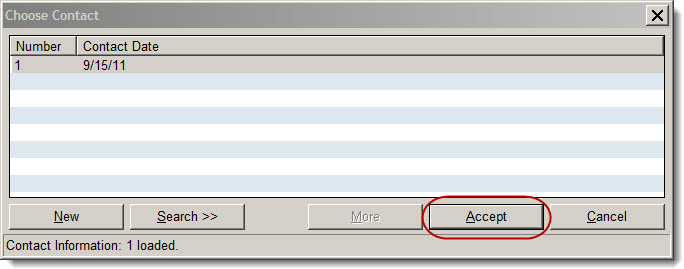
Highlight the appropriate entry.
Click Accept.
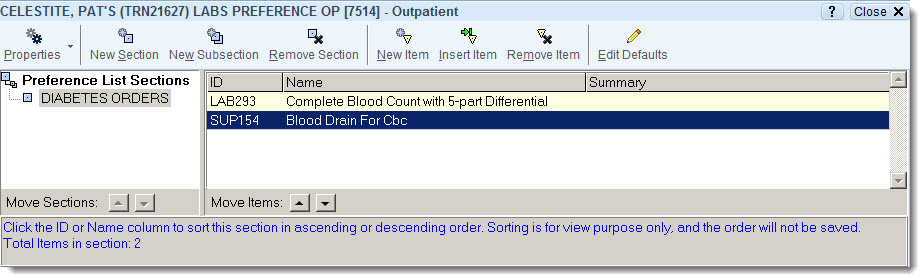
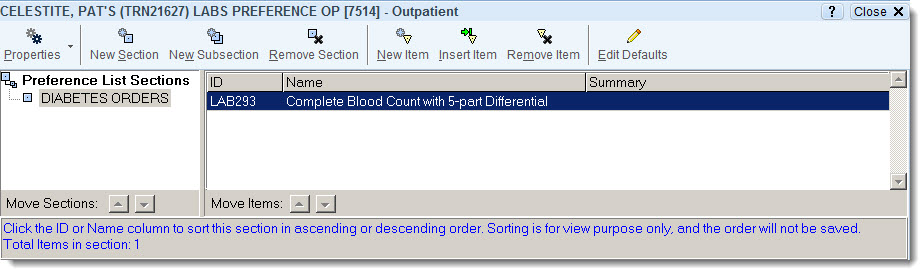
Highlight section containing the order you want to remove.
Highlight the order you want to remove.
Click Remove Item.

A confirmation dialog box opens.
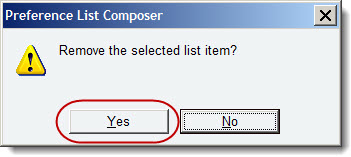
Click Yes to confirm
that you would like to delete the item.
The item no longer appears in your preference list.
 Be careful not
to remove the section, as this will remove
all orders in that section of your preference list.
Be careful not
to remove the section, as this will remove
all orders in that section of your preference list.